Browser extension
Minutes in your browser
This page always serves the newest build — v3.27.0. Takes about two minutes.
Updating your copy
I'm installing freshNever click Remove. Removing an extension wipes its saved data — sessions, projects and site history go with it. Upgrading means overwriting the files in the same folder and pressing refresh.
- 1
Download the newest zip
Use the button at the top — it always serves v3.27.0.
- 2
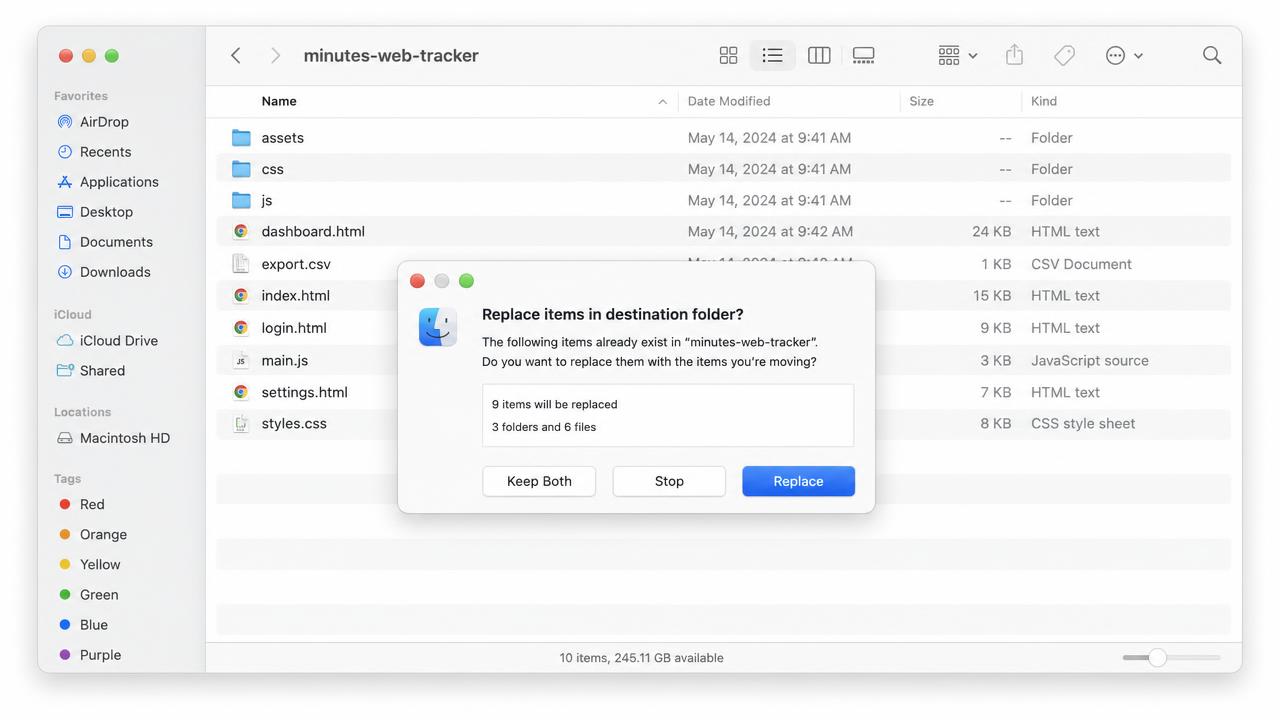
Unzip and overwrite your existing folder
Copy the new contents into your existing minutes-web-tracker folder and choose Replace.
Same folder, same path — that's what keeps your data intact.
- 3
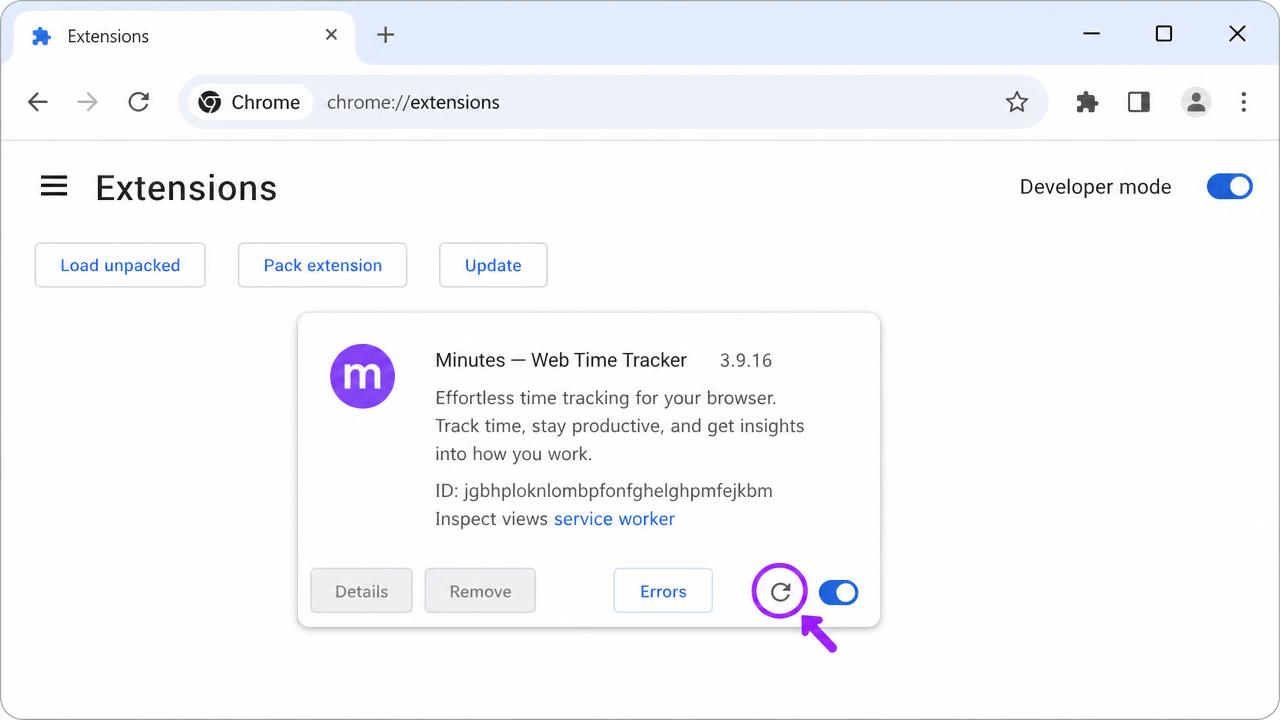
Press refresh on the Minutes card
On chrome://extensions, click the circular refresh icon on the Minutes card. The version updates to 3.27.0.
Don't load the new folder as a second extension — two copies would fight over one timer.
- 4
Safety net
Extension Settings → Backup & restore exports a file before any upgrade, and Restore from my account pulls your last 30 days back.
Let the popup's pending count reach zero before any big change.
Other browsers & help
Firefox: until the listing is live, open about:debugging#/runtime/this-firefox, click Load Temporary Add-on, and pick manifest.json in the unzipped folder. Firefox drops temporary add-ons on restart.
File: minutes-web-tracker-v3.27.0.zip
Stuck? Email wecare@justminutes.app or read the support page.